
 Posted by
 Why Does the AnyDesk Cursor Show a Red Caution (Sign)

And How to Fix It
If you’ve ever been in the middle of a remote support session and suddenly noticed your AnyDesk cursor showing a red caution sign, you probably wondered: What just happened? Don’t worry—you’re not alone. This little warning icon is actually AnyDesk’s way of telling you that your access is limited. In other words, you can still move around, but some actions are blocked. So why does this happen. And more importantly, how can you fix it so you get full control again. Let’s break it down step by step in plain English.
What the Red Caution Symbol Really Means
The red caution sign on your AnyDesk cursor is basically a warning light. It’s telling you that the remote computer isn’t allowing certain actions. This could be because of permissions, security rules, network settings, or even simple software glitches.
Think of it as the Computer saying
Hold on—you don’t have the keys to do that here.
Understanding this symbol is important because it helps you know whether the issue is on your side, the remote side, or somewhere in between.
Common Reasons for the AnyDesk Cursor Red Caution Sign.
Here are the most frequent causes of this warning and what you can do about them. IN THIS PARAGRAPH [Co-Development]
1. Not Enough Permissions
One of the biggest reasons is missing permissions. If you’re not logged in with the right account type, you won’t be able to change system settings, install apps, or access protected files.
User Rights:
If the remote account doesn’t have admin rights, you’ll see restrictions.
File/Folder Permissions:
Trying to open a folder you don’t have access to? The red caution sign pops up.
App-Specific Rules:
Some apps need elevated permissions to run fully. Without them, AnyDesk blocks the action.
Group Policies:
On company networks, IT might set restrictions through Group Policy, limiting what you can do.
Solution:
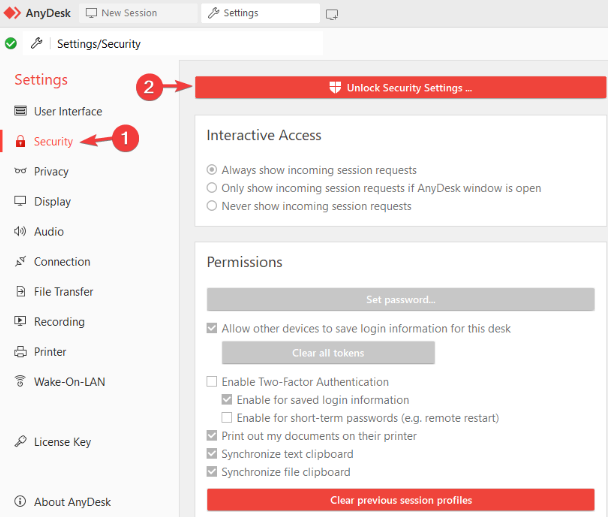
Log in with an administrator account or ask the remote user to grant you the right permissions.
2. Security Software Blocking You
Firewalls, antivirus tools, and Windows’ built-in security can all stop AnyDesk from doing its job.
Firewall:
If the firewall blocks certain ports, features like file transfer won’t work.
Antivirus:
Some antivirus programs see AnyDesk as “suspicious” and block its actions.
UAC (User Account Control):
This feature might demand extra approval before allowing sensitive tasks.
Access Control Lists (ACLs):
These rules can restrict who gets access to certain system areas.
Solution:
Adjust the firewall/antivirus to allow AnyDesk. For UAC, you may need to confirm prompts or run AnyDesk with admin privileges.
3. Remote Computer Issues
High CPU or RAM usage can cause delays.
Stopped system services may restrict access.
Crashed or frozen apps may block interaction.
Sometimes, it’s not you—it’s the remote computer. If the system is overloaded or certain services are down, AnyDesk can’t function properly.
Solution:
Ask the remote user to close heavy apps or restart the machine if needed.
4. Software Compatibility Problems
Security software conflicts can cause restrictions.
Outdated drivers can block hardware communication.
Old OS versions may not work with the latest AnyDesk.
Solution: Keep AnyDesk, the OS, and drivers up to date.
If you’re running an outdated version of AnyDesk or the remote system has old drivers or unsupported software things can get messy.
5. Network Restrictions
Your network setup can also play a big role. If certain traffic is blocked, you’ll get the warning sign.
Firewall Policies:
Blocked ports
limited AnyDesk features.
Proxy issues:
Wrong proxy settings can restrict access.
NAT Problems:
If traffic isn’t forwarded correctly, connections may fail.
QoS limits:
Low network priority for AnyDesk traffic can cause delays.
Solution:
Configure your firewall and router to allow AnyDesk traffic.
6. Missing Administrator Rights
Even if you think you’re in control, without admin rights you’ll always hit a wall. Installing software, changing system settings, or modifying networks requires elevated access.
UAC Prompts:
If the remote user doesn’t accept them, you’re stuck.
Service Accounts:
Some apps/services have their own limited rights.
Solution:
Start the session with administrator privileges or have the remote user approve UAC requests.
Quick Fixes for AnyDesk Red Caution Symbol
If you see that little red warning sign, here’s what you should do.
Check Permissions
Make sure you’re using the right account with admin rights.
Review Security Settings
Allow AnyDesk in your firewall and antivirus.
Handle UAC Properly
Approve prompts or adjust UAC if necessary.
Update Everything
AnyDesk, drivers, and OS updates can solve compatibility issues.
Look at the Network
Open required ports and check router/proxy settings.
Restart Remote Machine
Sometimes a fresh start fixes hidden issues.
Check System logs
Windows Event Viewer often reveals what’s blocking you.
FAQs:
1. What is AnyDesk Cursor Show?
AnyDesk Cursor Show is a feature that allows users to view the remote user’s mouse movements clearly during a remote session. It helps in improving collaboration, training, and troubleshooting by making it easy to follow actions in real time.
2. Why can’t I see the remote cursor in AnyDesk?
If you can’t see the remote cursor, it may be due to display settings or permissions. Make sure that the “Show Remote Cursor” option is enabled under Display Settings in AnyDesk. Also, ensure that the remote device allows input and display access.
3. How do I enable the cursor show option in AnyDesk?
To enable it:
-
Open AnyDesk on your computer.
-
Go to Settings > Display.
-
Check the box for “Show Remote Cursor.”
Once this option is enabled, you’ll be able to see the mouse movements of the remote user instantly.
4. Does the cursor show feature work on all devices?
Yes, the cursor show feature works across Windows, macOS, Linux, and Android devices. However, on mobile platforms, visibility might depend on screen resolution and permissions granted during connection.
5. Why is the cursor delayed or lagging in AnyDesk?
A delay or lag in cursor movement usually happens because of slow internet speed or network latency. To fix it, use a stable connection, reduce the display quality, or lower the resolution settings in AnyDesk to improve performance.
6. Can I hide the remote cursor in AnyDesk?
Yes. If you don’t want to see the remote cursor, go to Settings > Display and uncheck the “Show Remote Cursor” option. This is useful if you want to work independently without visual distractions.
7. Is the cursor show feature safe to use?
Absolutely. AnyDesk’s cursor show option doesn’t record or control your device automatically. It only shows visual movement for collaboration purposes. The feature works within AnyDesk’s secure, encrypted connection.
Conclusion:
Seeing the AnyDesk cursor red caution sign can be frustrating, but it’s not the end of the world. Most of the time, it just means permissions or security settings are in the way. By checking user rights, updating software, and making sure the network is properly configured, you can get rid of the warning and enjoy smooth remote access again.
So the next time that little red symbol appears, don’t panic—you now know exactly where to start troubleshooting.
